Find a Model on Universe
Over 50,000 datasets on Universe also have trained models associated with the dataset. These models can be used in your computer vision project with Workflows.
To find a dataset on Universe, type in what you want to identify into the search bar. On the search page, check the "Has a Model" box:
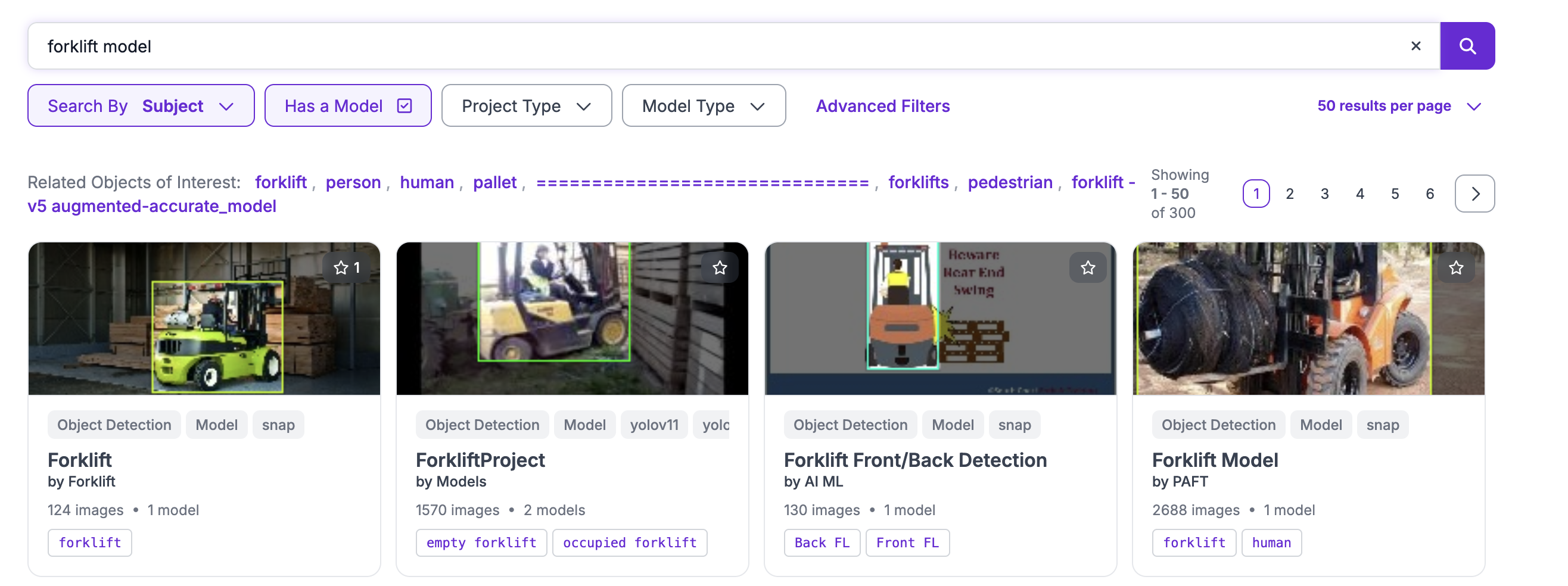
This will refine your search to only datasets that contain trained models.
Click on a result to find out more about the project.
The dataset home page will show metrics. These metrics will depend on the model type. For object detection, for example, you will see mAP, precision, and recall; for classification you will see accuracy.
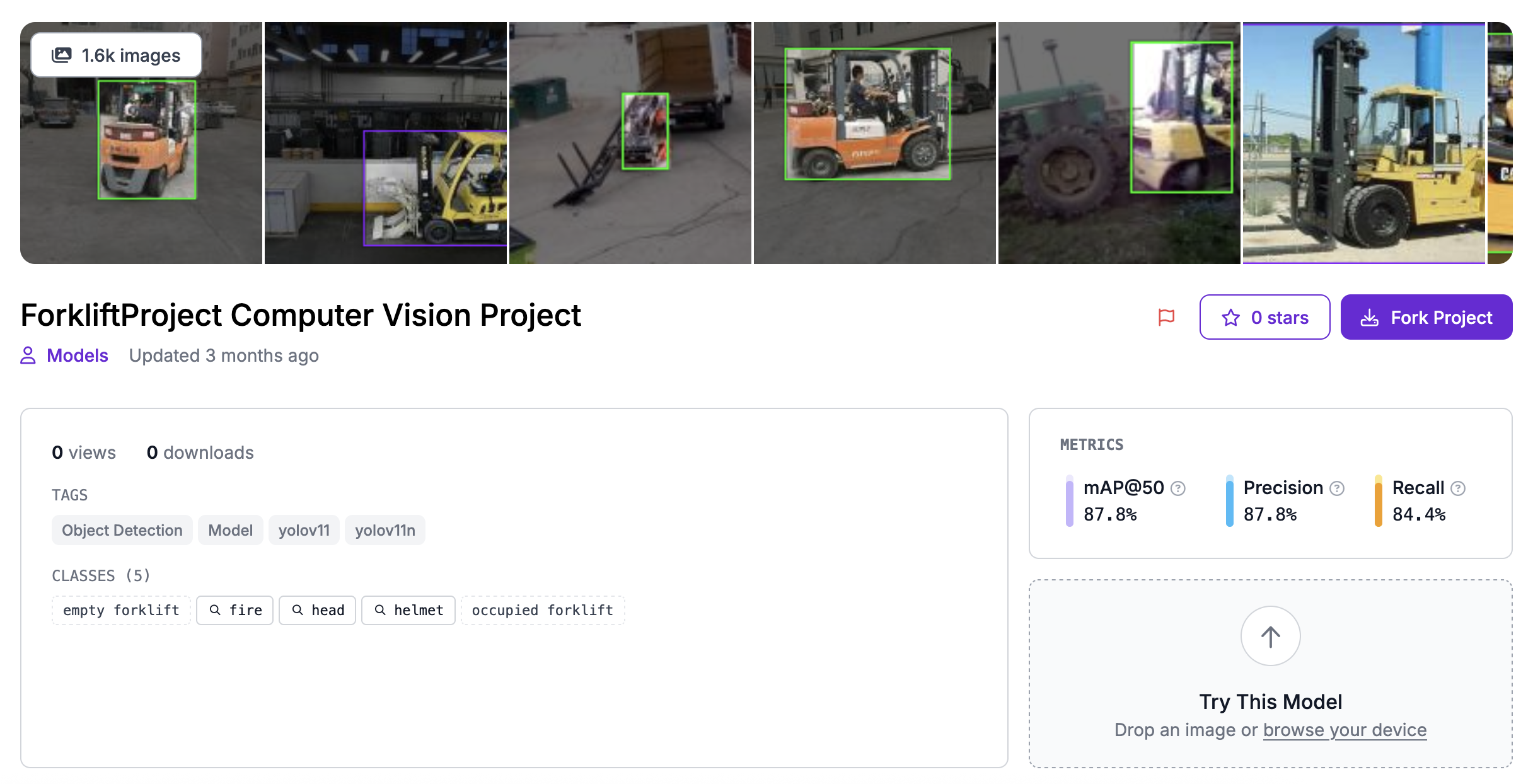
You can upload an image into the "Try This Model" section to try the most recent model version.
You can also click "Models" in the sidebar to see all trained models and choose one to try:
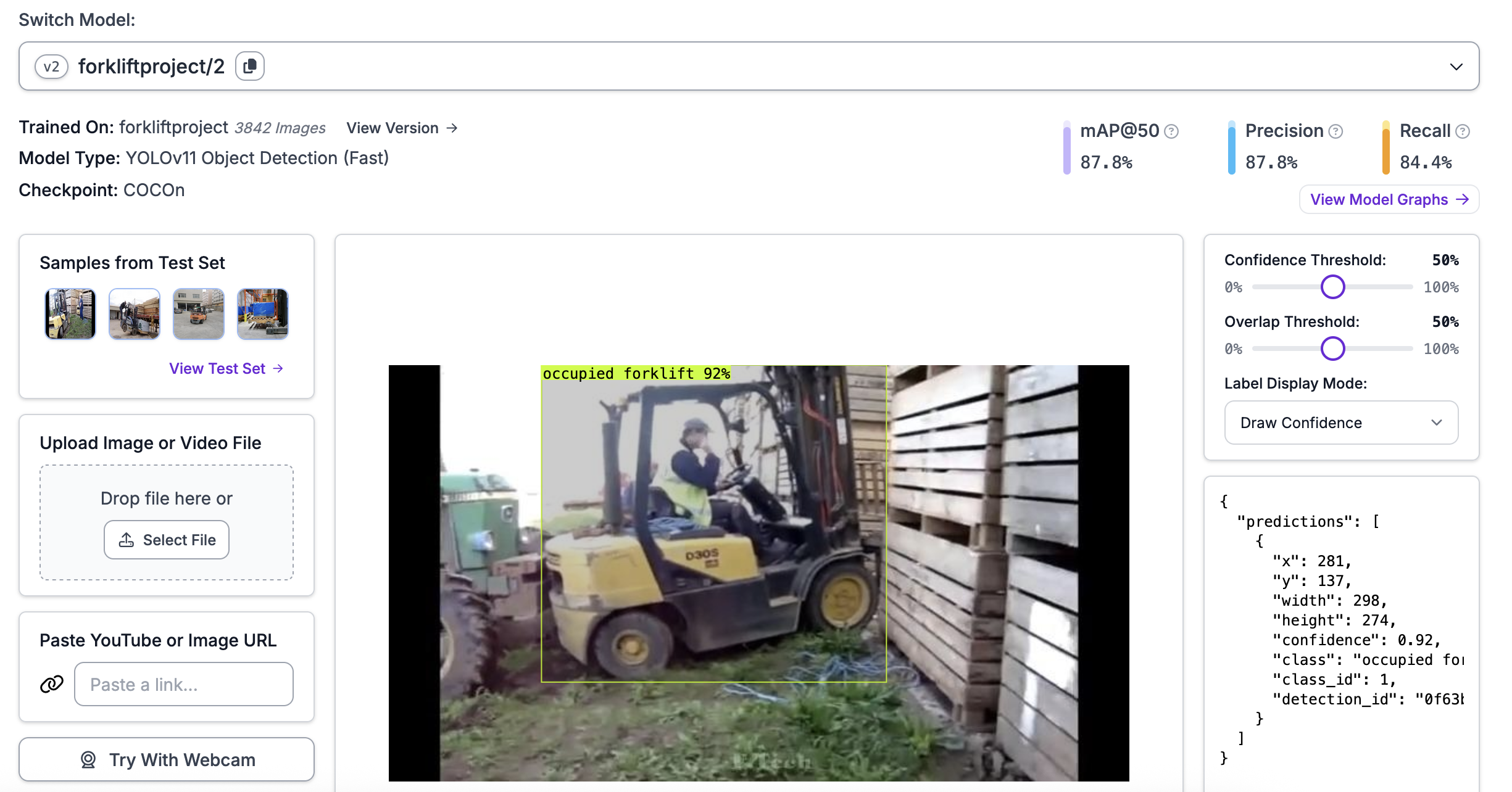
When you open the Models page, you will see the results from an example image in the project test set plotted onto the image:
Use a Universe Model in a Workflow
You can use Universe models in Workflows.
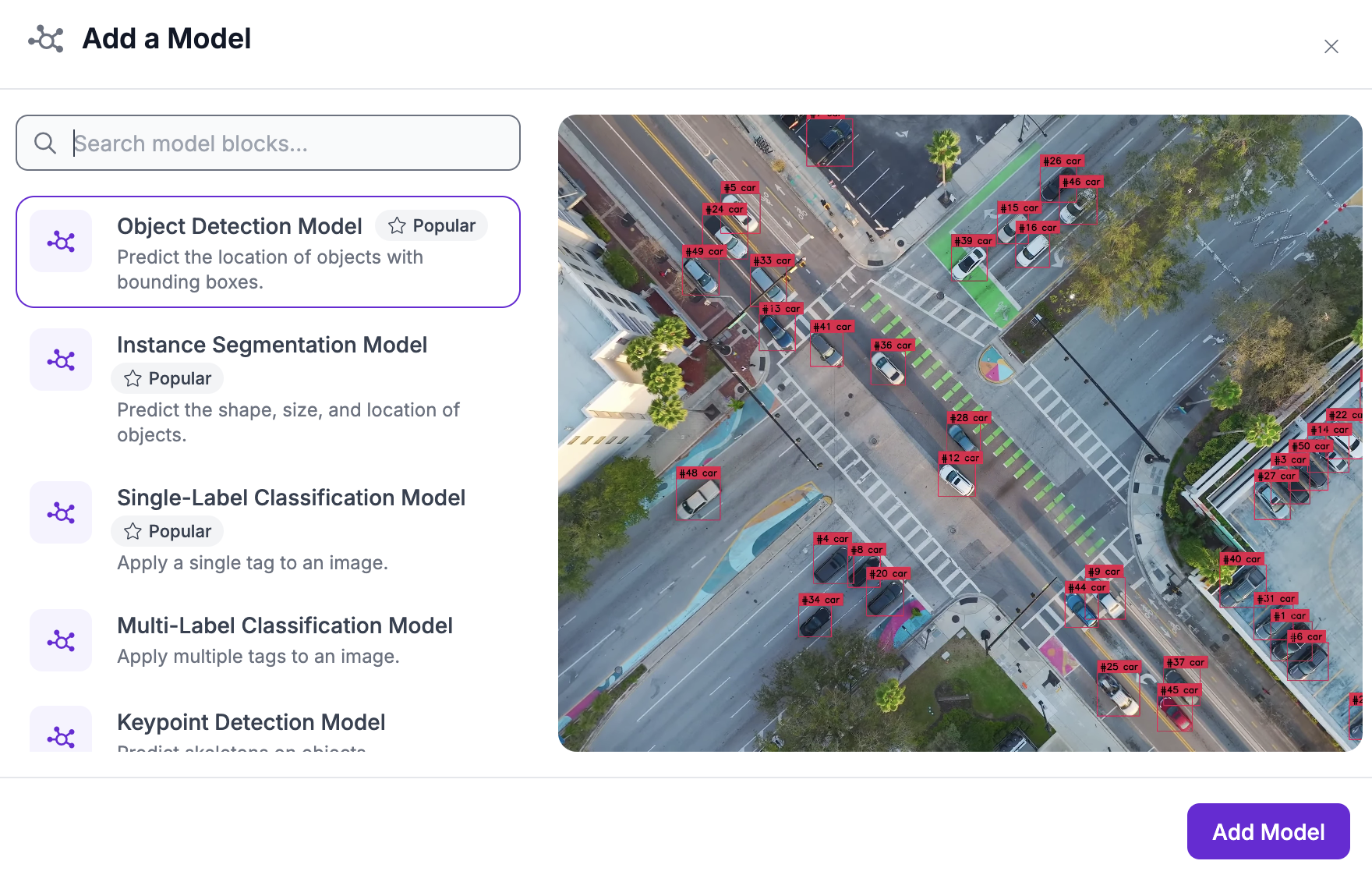
To use a model, open Roboflow Workflows, create a Workflow, then add a model block:
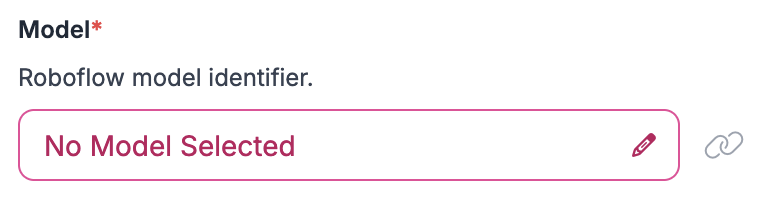
Click "Model" in the block editor to select a model:
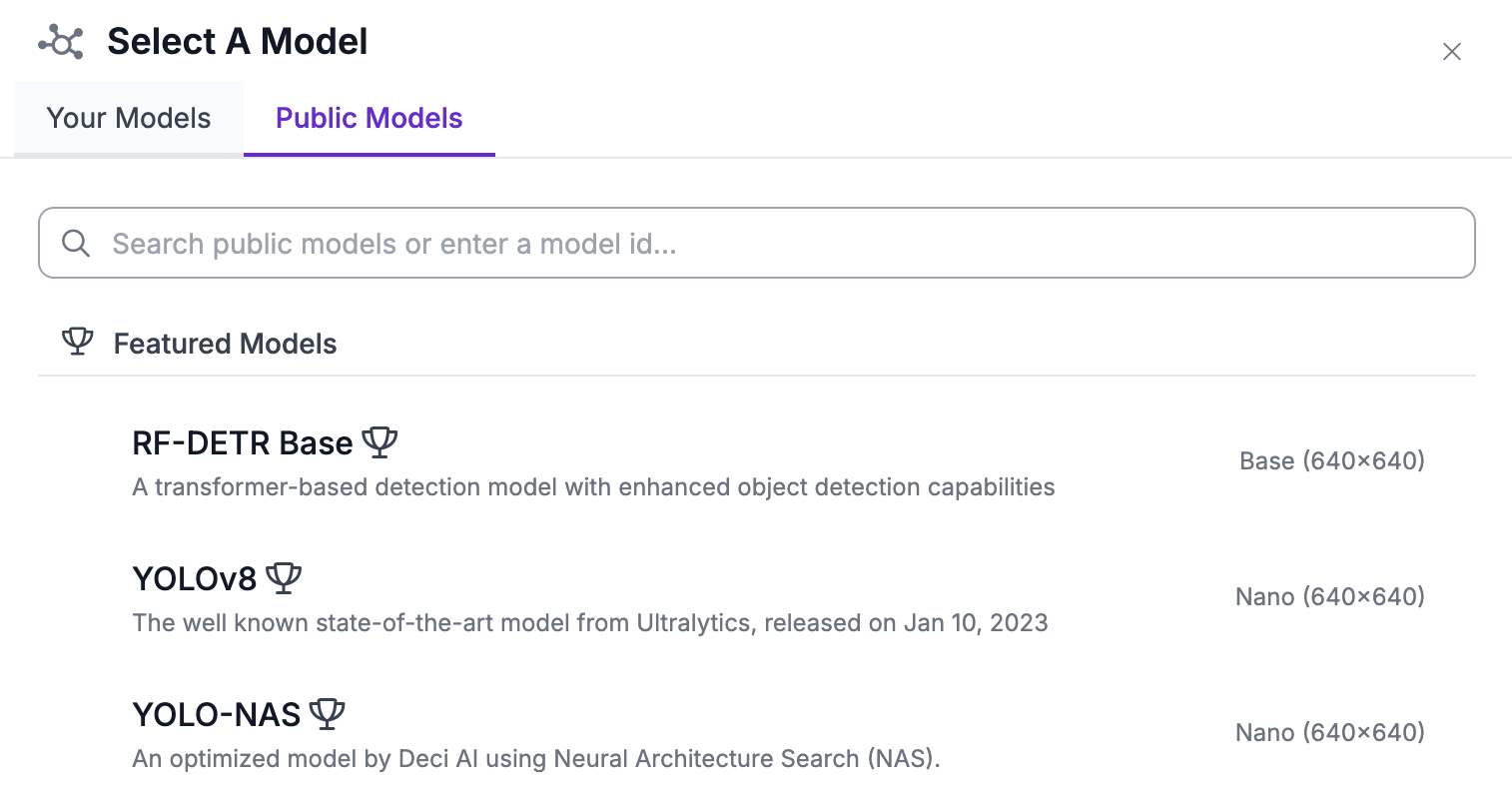
Then, click the Public Models tab:
Go back to the Universe model page that corresponds with the model you want to use and click the copy icon to copy the model ID. This appears at the top of the model page:

Then, paste the model ID into the Public Models search bar:
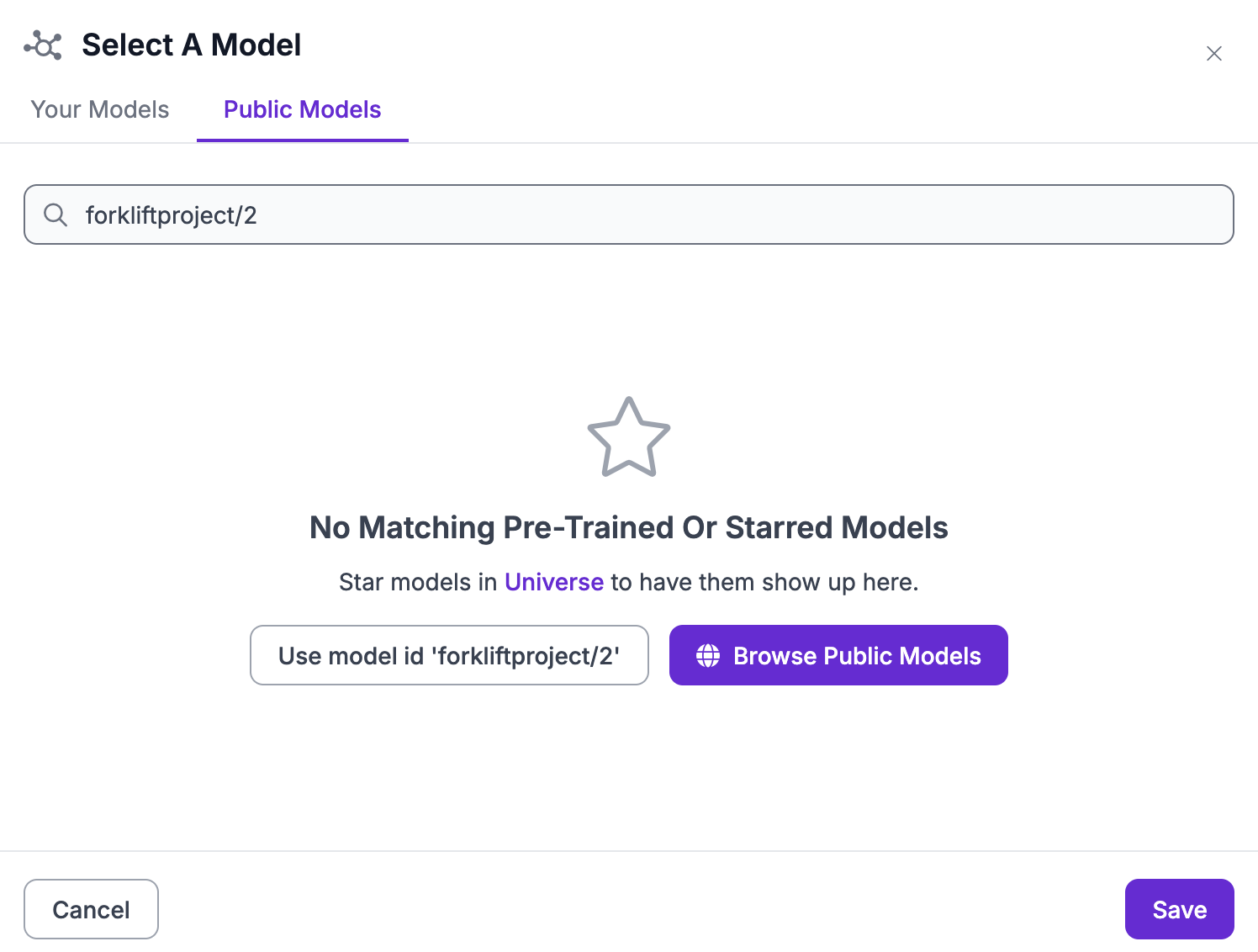
Click "Use model ID" to use the model.
Your Workflow block will now use the Universe model.