Create a Workflow
Create a Workflow in the Roboflow App
To create a Workflow, navigate to your workspace dashboard and click the "Workflows" tab.
On the Workflows page, click "Create a Workflow" to create a workflow.
You will be redirected to your new Workflow in the Roboflow web application.
You can optionally start with a template that lets you do, among other things:
- Run a single model, count detected objects, and visualize results.
- Run a detection model, crop results, and then run an OCR model for text recognition.
- Detect an object then classify the region of the detection.
Select "Start from a Template" to browse our popular workflow templates.
Now that you have created a workflow, let's configure it to solve a vision use case.
Build a Workflow from Scratch
In this example, we are going to build a Workflow from scratch that detects dogs, classifies their breeds, and visualizes the results.
Step 1: Create a Workflow
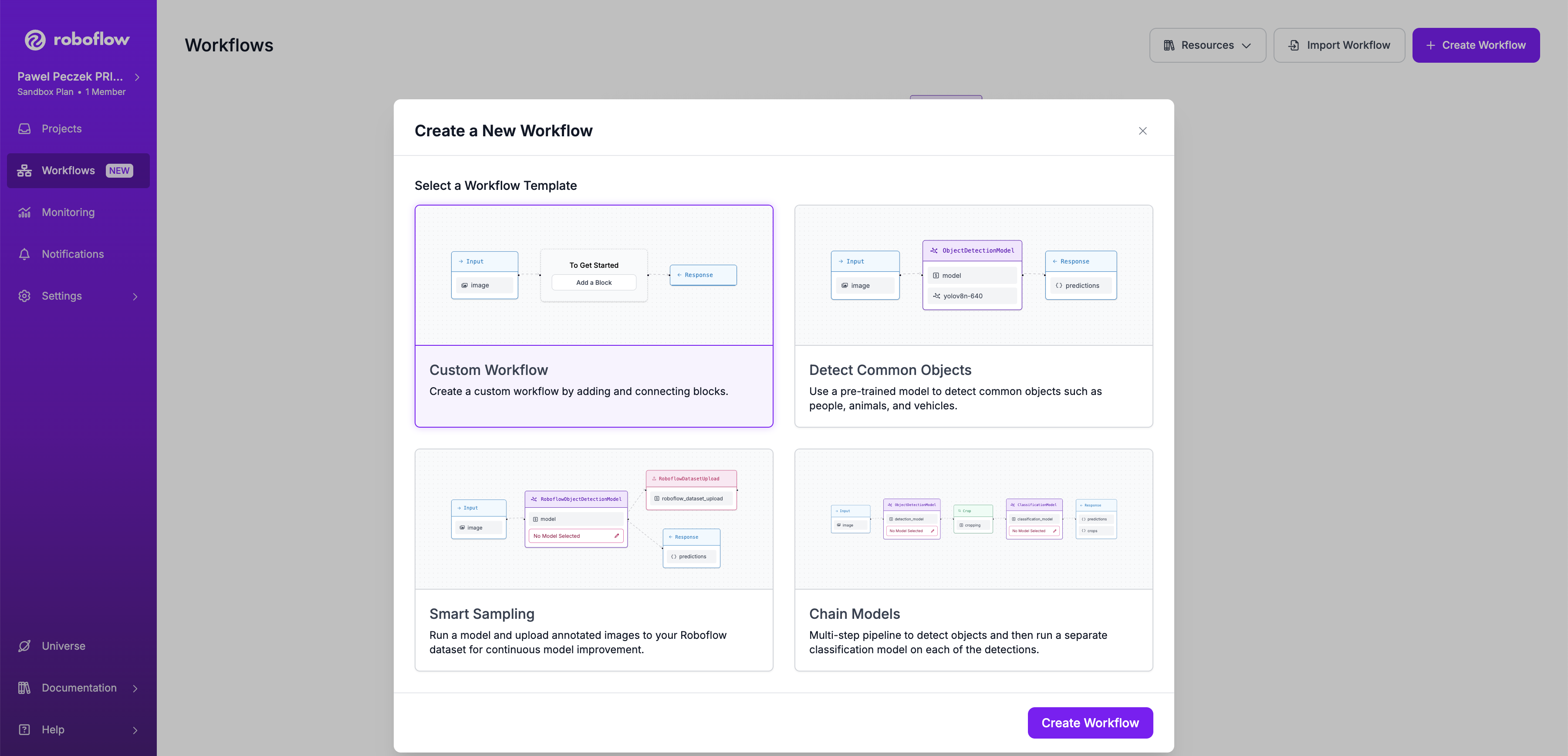
Open https://app.roboflow.com/ in your browser and navigate to the Workflows tab, then click the Create Workflow button. Select Custom Workflow to start the creation process.
Step 2: Add an object detection model
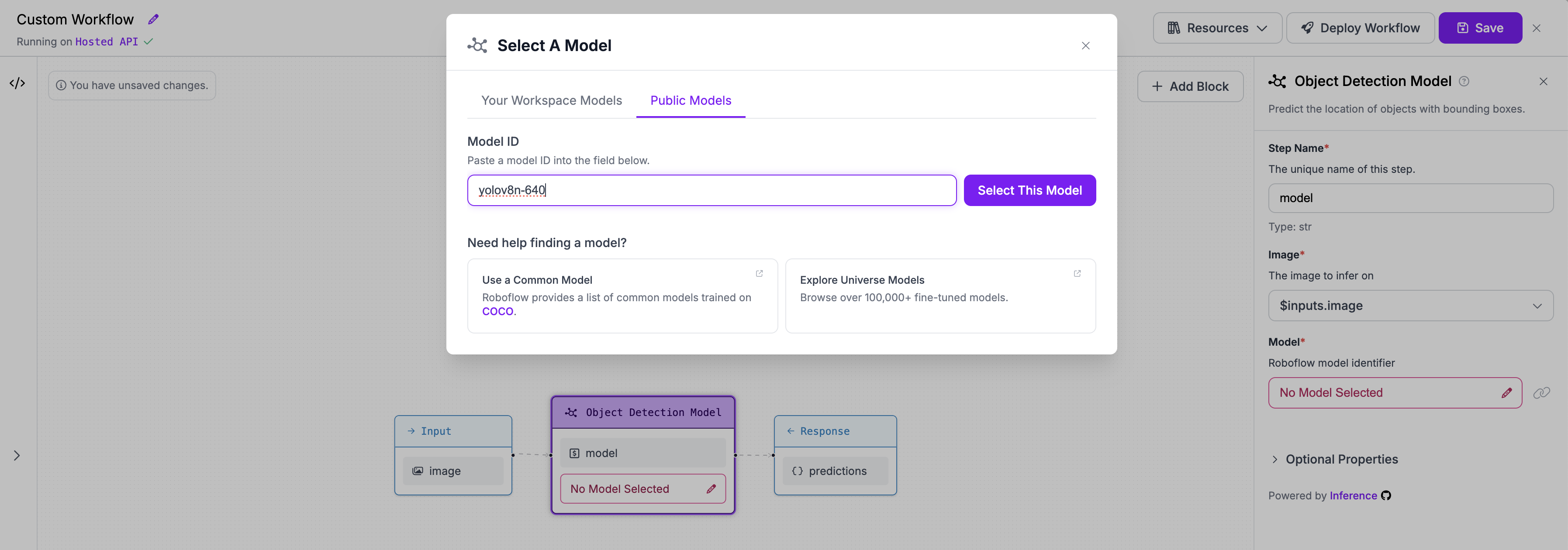
We need to add a block with an object detection model to the existing workflow. We will use the rfdetr-small model.
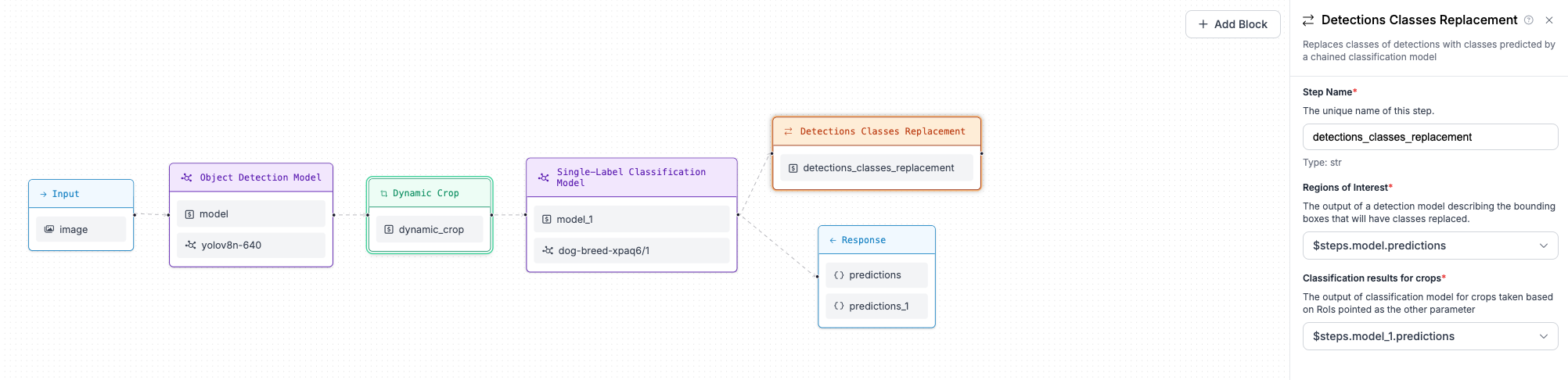
Step 3: Crop each detected object to run breed classification
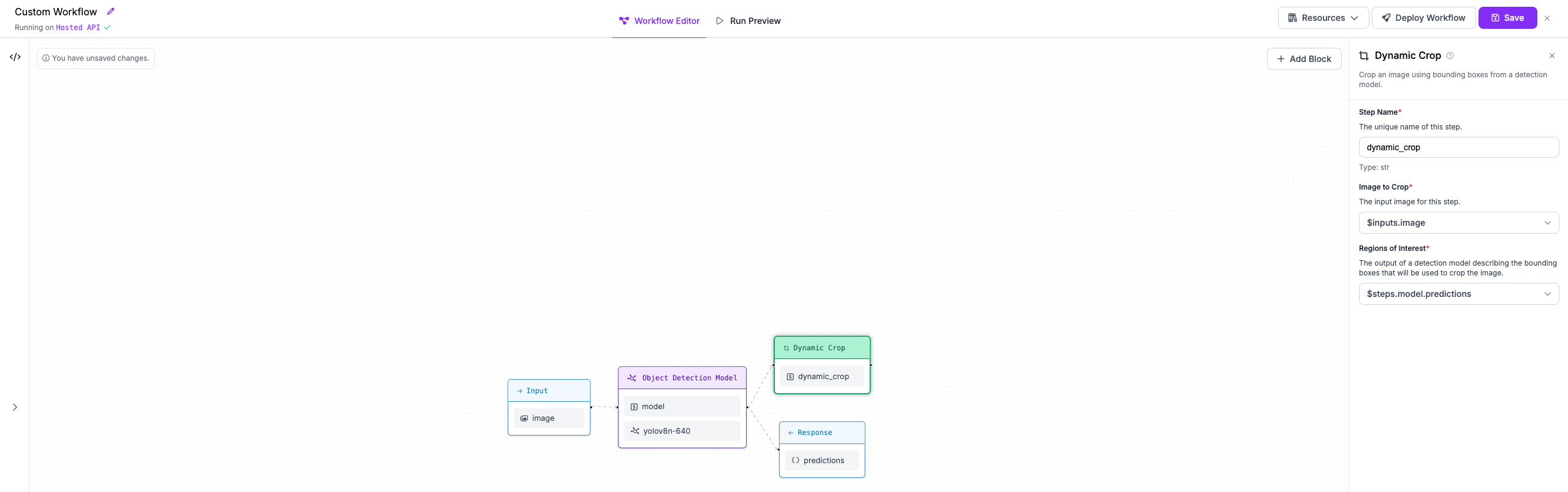
Next, we'll add a block to our Workflow that crops the objects detected by our first model.
Step 4: Classify dog breeds with second stage model
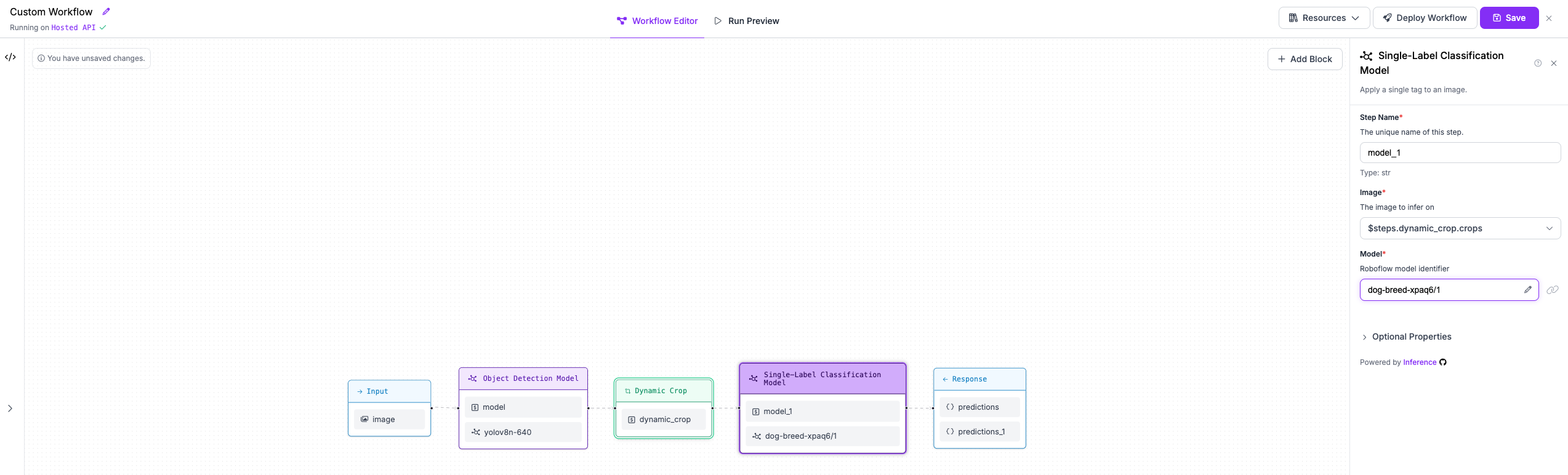
We will then add a classification model that runs on each crop to classify its content. We will use the Roboflow Universe model dog-breed-xpaq6/1. Ensure that in the block configuration the Image property points to the crops output of the Dynamic Crop block.
Step 5: Replace bounding box classes with classification model predictions
When each crop is classified, we want to assign the predicted class (dog breed) to the bounding boxes from the object detection model. To do this, we use the Detections Classes Replacement block, which accepts a reference to the object detection model predictions as well as a reference to the classification results on the crops.
Step 6: Visualize predictions
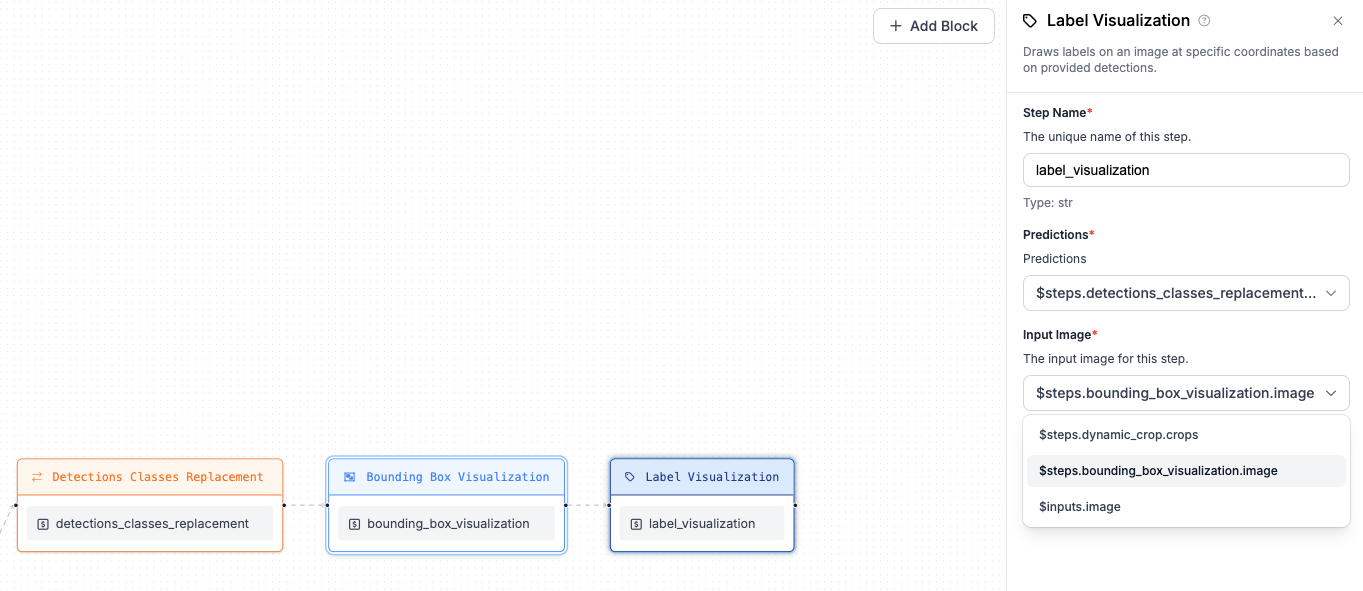
As a final step of the workflow, we want to visualize our predictions. We'll use two visualization blocks: Bounding Box Visualization and Label Visualization chained together. First, add Bounding Box Visualization and refer to $inputs.image for the Image property (that's the image sent as input to the workflow). The second step (Label Visualization) should point to the output of the Bounding Box Visualization step. Both visualization steps should refer to predictions from the Detections Classes Replacement step.
Step 7: Construct output
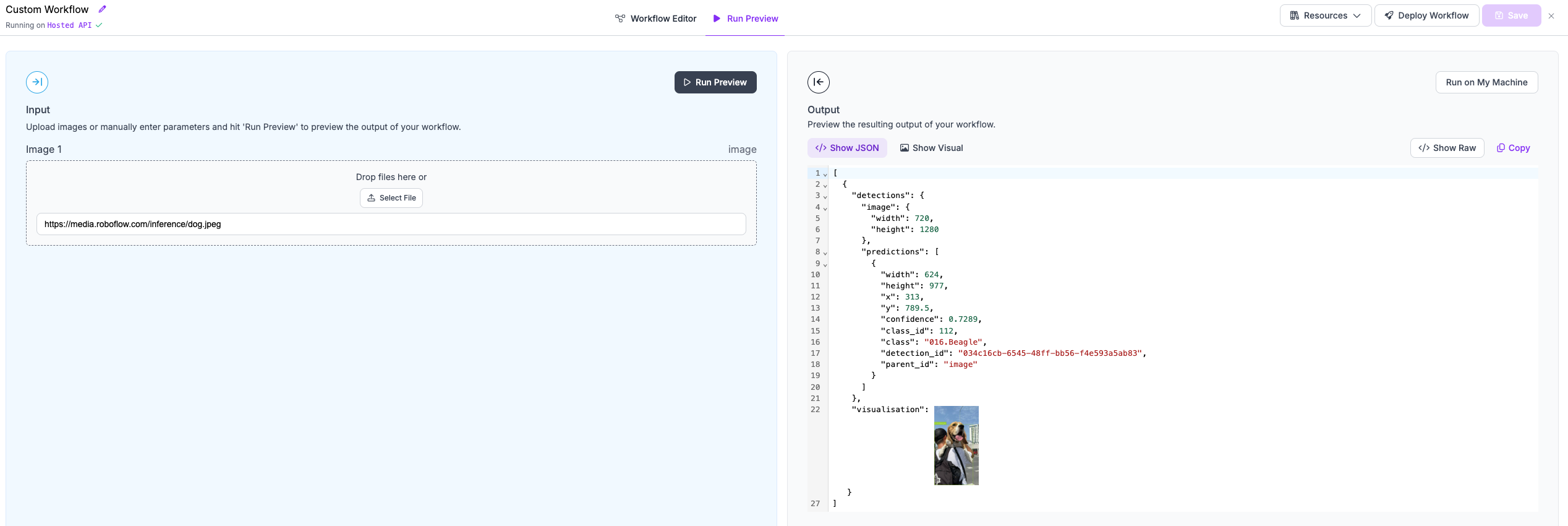
You now have everything ready to construct your workflow output. You can use any intermediate step output that you need, but in this example we will only select bounding boxes with replaced classes (output from the Detections Classes Replacement step) and visualization (output from the Label Visualization step).
Step 8: Running the workflow
Now your workflow is ready. You can click the Save button and move to the Run Preview panel.
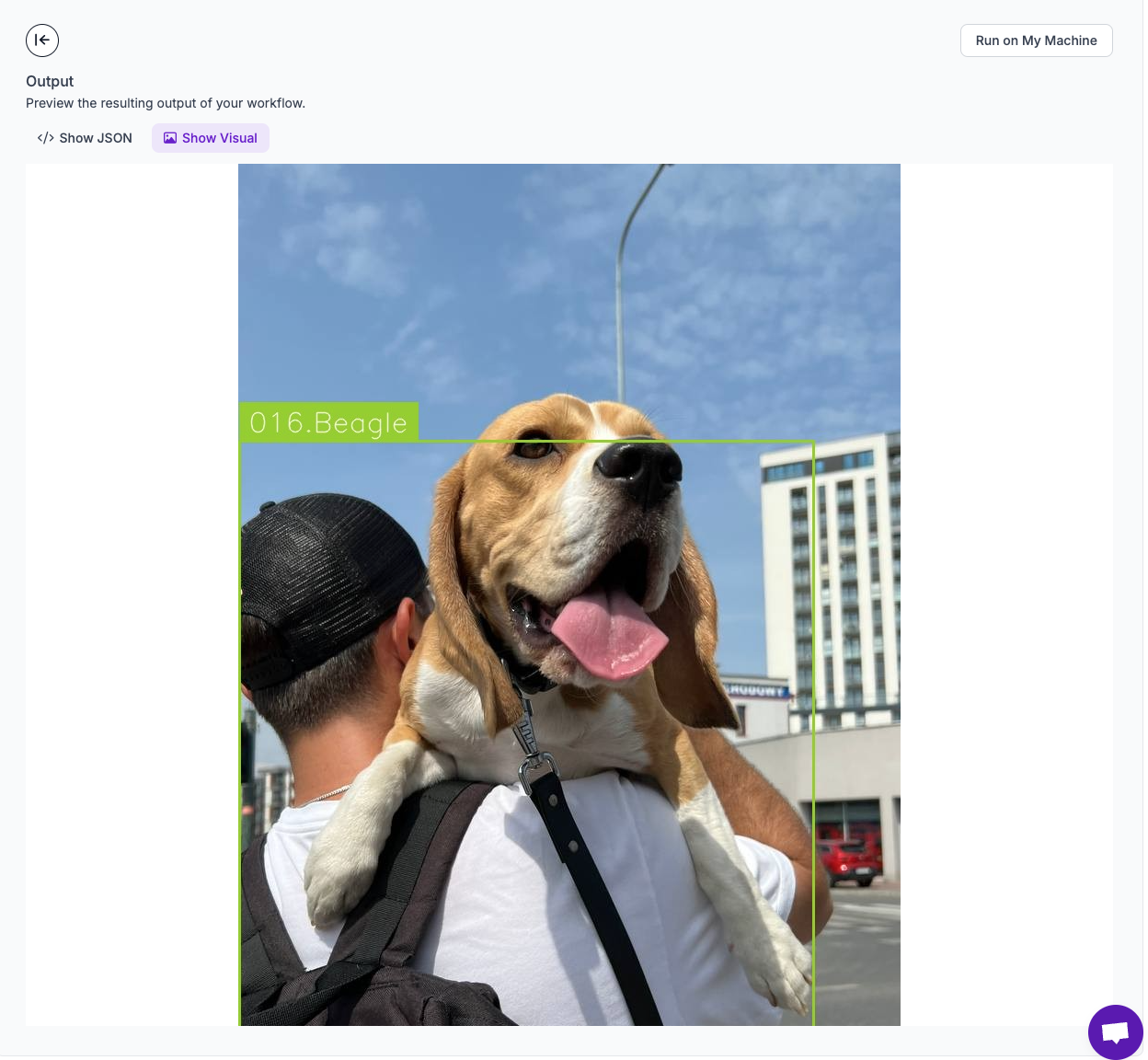
We will run our workflow against the following example image: https://media.roboflow.com/inference/dog.jpeg. Here are the results:
Click the Show Visual button to see the results of our visualization efforts.
Workflow definition for quick reproduction
To make it easier to reproduce the workflow, below you can find a workflow definition you can copy-paste to the UI editor.
{
  "version": "1.0",
  "inputs": [
    {
      "type": "InferenceImage",
      "name": "image"
    }
  ],
  "steps": [
    {
      "type": "roboflow_core/roboflow_object_detection_model@v1",
      "name": "model",
      "images": "$inputs.image",
      "model_id": "rfdetr-small"
    },
    {
      "type": "roboflow_core/dynamic_crop@v1",
      "name": "dynamic_crop",
      "images": "$inputs.image",
      "predictions": "$steps.model.predictions"
    },
    {
      "type": "roboflow_core/roboflow_classification_model@v1",
      "name": "model_1",
      "images": "$steps.dynamic_crop.crops",
      "model_id": "dog-breed-xpaq6/1"
    },
    {
      "type": "roboflow_core/detections_classes_replacement@v1",
      "name": "detections_classes_replacement",
      "object_detection_predictions": "$steps.model.predictions",
      "classification_predictions": "$steps.model_1.predictions"
    },
    {
      "type": "roboflow_core/bounding_box_visualization@v1",
      "name": "bounding_box_visualization",
      "predictions": "$steps.detections_classes_replacement.predictions",
      "image": "$inputs.image"
    },
    {
      "type": "roboflow_core/label_visualization@v1",
      "name": "label_visualization",
      "predictions": "$steps.detections_classes_replacement.predictions",
      "image": "$steps.bounding_box_visualization.image"
    }
  ],
  "outputs": [
    {
      "type": "JsonField",
      "name": "detections",
      "coordinates_system": "own",
      "selector": "$steps.detections_classes_replacement.predictions"
    },
    {
      "type": "JsonField",
      "name": "visualisation",
      "coordinates_system": "own",
      "selector": "$steps.label_visualization.image"
    }
  ]
}
Next Steps
Now that you have created and run your first workflow, you can explore our other supported blocks and create a more complex workflow.
Refer to our Supported Blocks documentation to learn more about what blocks are supported. We also recommend reading the Understanding Workflows page.